


WhatsApp Web now lets you make and receive one-to-one and group voice or video calls directly in a supported browser. No desktop-app installation is required, making it useful on shared, managed or temporary computers.
Quick Summary
- Open WhatsApp Web and link your account by scanning the official QR code.
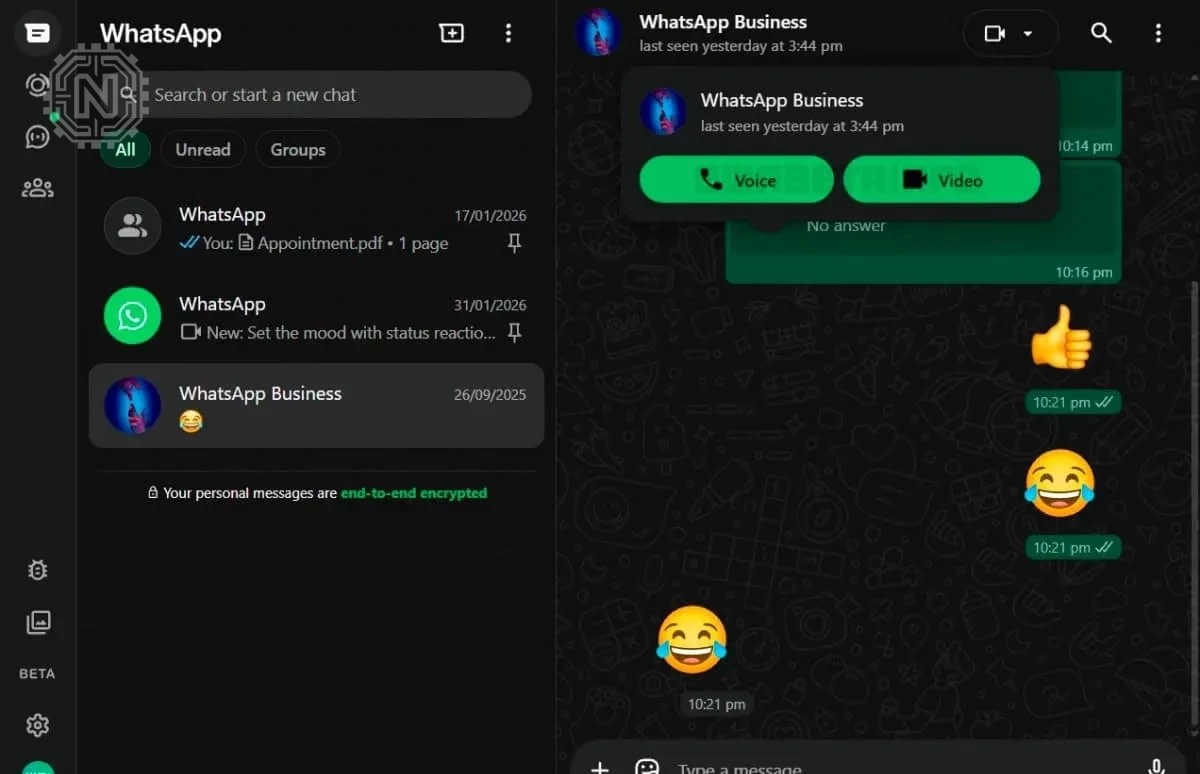
- Choose a chat, then select the phone or video-camera icon.
- Allow microphone access for voice calls and camera access for video calls.
- Check browser permissions, operating-system privacy settings and internet quality when calling does not work.
WhatsApp Calling From a Web Browser
Meta announced WhatsApp Web calling on July 28, 2026. The web experience supports audio and video calls for individuals and groups, along with screen sharing, reactions, a Calls tab, call history and favourites. Meta says the rollout is gradual, so some accounts may receive individual features later than others.
This guide covers the complete browser setup, including device linking, call controls, camera and microphone access, troubleshooting and safety on shared computers.
What You Need Before Starting
Basic requirements
- An active WhatsApp account and access to the phone used to register it.
- A current version of Chrome, Edge, Safari or Firefox.
- A working microphone and speakers or headphones.
- A webcam for video calls.
- A stable internet connection.
Use headphones when possible to reduce echo. Close Zoom, Teams, Meet and camera utilities before calling because another application may already be using the webcam or microphone.
How to Link WhatsApp Web
- Open the official site. Visit web.whatsapp.com.
- Open Linked Devices on your phone. On Android, use the three-dot menu and select Linked devices. On iPhone, open Settings and choose Linked Devices.
- Select Link a device. Complete the requested fingerprint, face or passcode check.
- Scan the QR code. Point the phone camera at the code displayed in your browser.
- Wait for chats to sync. Open a conversation and look for the phone and video-camera controls.
Security reminder
Scan only the QR code displayed on the official WhatsApp Web domain. A QR code sent through an unknown message, email or unofficial website may be an account-linking scam.

How to Make a WhatsApp Voice Call
- Open the individual chat of the person you want to call.
- Select the phone icon near the top of the conversation.
- Choose Allow when the browser requests microphone access.
- Select the correct microphone and speaker when device choices appear.
- Wait for the other person to answer.
Use the microphone button to mute or unmute yourself. Select the red end-call control when the conversation is finished.
How to Make a WhatsApp Video Call
- Open an individual conversation or a supported group call.
- Select the video-camera icon.
- Allow access to both the camera and microphone.
- Check the preview and confirm that the correct webcam is selected.
- Start the call. You can switch the camera off without ending the audio.
For a group call, open the Calls area or use an available call link and follow the participant controls shown on screen. The exact placement of buttons can vary slightly during the rollout.
Useful Controls During a Browser Call
| Control | What it does | When it helps |
|---|---|---|
| Microphone | Mutes or restores your voice. | When you are not speaking or have background noise. |
| Camera | Turns video on or off. | When you want to continue using audio only. |
| Device settings | Changes the selected microphone, speaker or camera. | When WhatsApp chooses the wrong device. |
| Screen sharing | Shares a screen, application window or tab. | For demonstrations, support or collaboration. |
| Reactions | Sends a quick visual response. | In group calls when you do not want to interrupt. |
| End call | Disconnects you from the call. | When the conversation is complete. |
How to Fix WhatsApp Web Calls That Are Not Working
The phone or video button is missing
Refresh WhatsApp Web, update the browser and sign in again. Because web calling is being released gradually, the feature may not yet be enabled for every account or browser version.
The microphone or camera is blocked
Select the site-information or permission icon beside the browser address bar. Set Camera and Microphone to Allow, then reload the WhatsApp Web tab.
The wrong device is selected
Open the in-call device settings and choose the correct microphone, speaker and camera. Disconnect unused Bluetooth devices if the browser keeps switching to them.
The video is black or frozen
Close other apps and tabs using the webcam. Disconnect and reconnect an external camera, refresh WhatsApp Web and grant camera access again.
The call disconnects or sounds unclear
Move closer to the Wi-Fi router, pause downloads and video streaming, or use a wired network. Turning off video can improve stability when bandwidth is limited.
The browser has permission but Windows or macOS still blocks access
Check the computer's privacy settings. Camera and microphone access must be enabled for the browser at both the site level and the operating-system level.
Fast troubleshooting checklist
- Update and restart the browser.
- Refresh or relink WhatsApp Web.
- Allow camera and microphone access.
- Confirm operating-system privacy permissions.
- Close competing meeting and camera apps.
- Test another supported browser.
Privacy and Safety on Shared Computers
WhatsApp says browser calls are end-to-end encrypted, have no built-in time limit and do not carry a WhatsApp calling fee, although normal internet or data charges can still apply.
On a public or shared computer, log out when finished. You can also open Linked Devices on your phone and remove the browser session remotely. Do not leave the browser signed in on a computer you do not control.
WhatsApp Web or the Desktop App?
| Area | WhatsApp Web | Desktop app |
|---|---|---|
| Installation | No installation required. | Requires an application download. |
| Best for | Shared, temporary, Linux or managed computers. | Frequent calling and a dedicated app window. |
| Permissions | Managed through browser and system privacy settings. | Managed mainly through system app permissions. |
| Updates | Delivered through the website and browser. | May require an app update. |
Conclusion
To make a WhatsApp voice or video call from a browser, open the official WhatsApp Web site, link your account, choose a chat and select the phone or camera icon. Allow the requested permissions and verify that WhatsApp is using the correct microphone, speaker and webcam.
When the call buttons are missing, update the browser and check again later because the rollout may still be reaching your account. When the controls are visible but calling fails, permissions, device selection and network quality are the first areas to inspect.
Frequently Asked Questions
Can I make WhatsApp calls without installing the desktop app?
Yes. WhatsApp Web supports one-to-one and group voice and video calls in supported browsers, although availability may still vary during the rollout.
Which browsers support WhatsApp Web calling?
WhatsApp says calling works best in current versions of Chrome, Edge, Safari and Firefox. Some older versions may not be supported.
Why are the call buttons missing?
Your account may not yet have the feature, or the browser may be outdated. Refresh the page, update the browser and relink the session.
Are WhatsApp Web calls end-to-end encrypted?
Yes. WhatsApp states that calls made through its web experience are end-to-end encrypted.
Can I share my screen during a browser call?
Yes. Screen sharing is available during supported video calls, and the browser asks you to select a screen, window or tab.
How do I fix a blocked camera or microphone?
Allow access in the browser's site-permission menu, confirm system privacy settings, close competing apps and reload WhatsApp Web.


