


Quick Summary
- Regular backups prevent data loss from hardware failure or malware.
- Different backup options include cloud storage and external drives.
- Windows 11 offers built-in tools for easy backup and recovery.
- Using both local and cloud backups provides comprehensive protection.
Backing up your Windows 11 system is crucial to safeguard against data loss caused by hardware failure, malware, or accidental deletion. In 2026, Microsoft continues to refine its backup tools, making it easier for users to secure their important files and system settings.
This guide walks you through the latest methods to back up Windows 11, including built-in tools, third-party software, and best practices to ensure your data remains safe and recoverable.
How to Backup Windows 11 Using Built-In Tools in 2026
Windows 11 offers several native options for backing up your data, including File History, System Image Backup, and OneDrive integration. These tools are designed to be user-friendly and effective for most users.
Using File History for File-Level Backup
- Connect an external drive or select a network location for backups.
- Navigate to Settings > Update & Security > Backup.
- Enable 'Automatically back up my files' and choose your backup drive.
Creating a System Image Backup
This creates a complete snapshot of your Windows 11 installation, including system files, installed programs, and settings. Access this via Control Panel > Backup and Restore (Windows 7) > Create a system image.
Store the image on an external drive or network location for safekeeping. This method is ideal for full system recovery after hardware failure or severe malware infection.
For more detailed steps, visit the official Microsoft support page on Windows 11 backup options.
Key Backup Facts for Windows 11 Users
- Windows 11 includes native backup tools that are easy to use.
- Regular backups prevent data loss from hardware issues or malware.
- External drives and cloud services are both viable backup options.
- Creating a system image allows full recovery of your PC.
"Using built-in Windows tools makes data backup straightforward and reliable."
Senior Windows Support Specialist
Third-Party Backup Software for Windows 11 in 2026
While Windows 11's native tools are sufficient for many users, third-party backup solutions offer advanced features like incremental backups, encryption, and cloud syncing. Popular options include Macrium Reflect, Acronis True Image, and EaseUS Todo Backup.
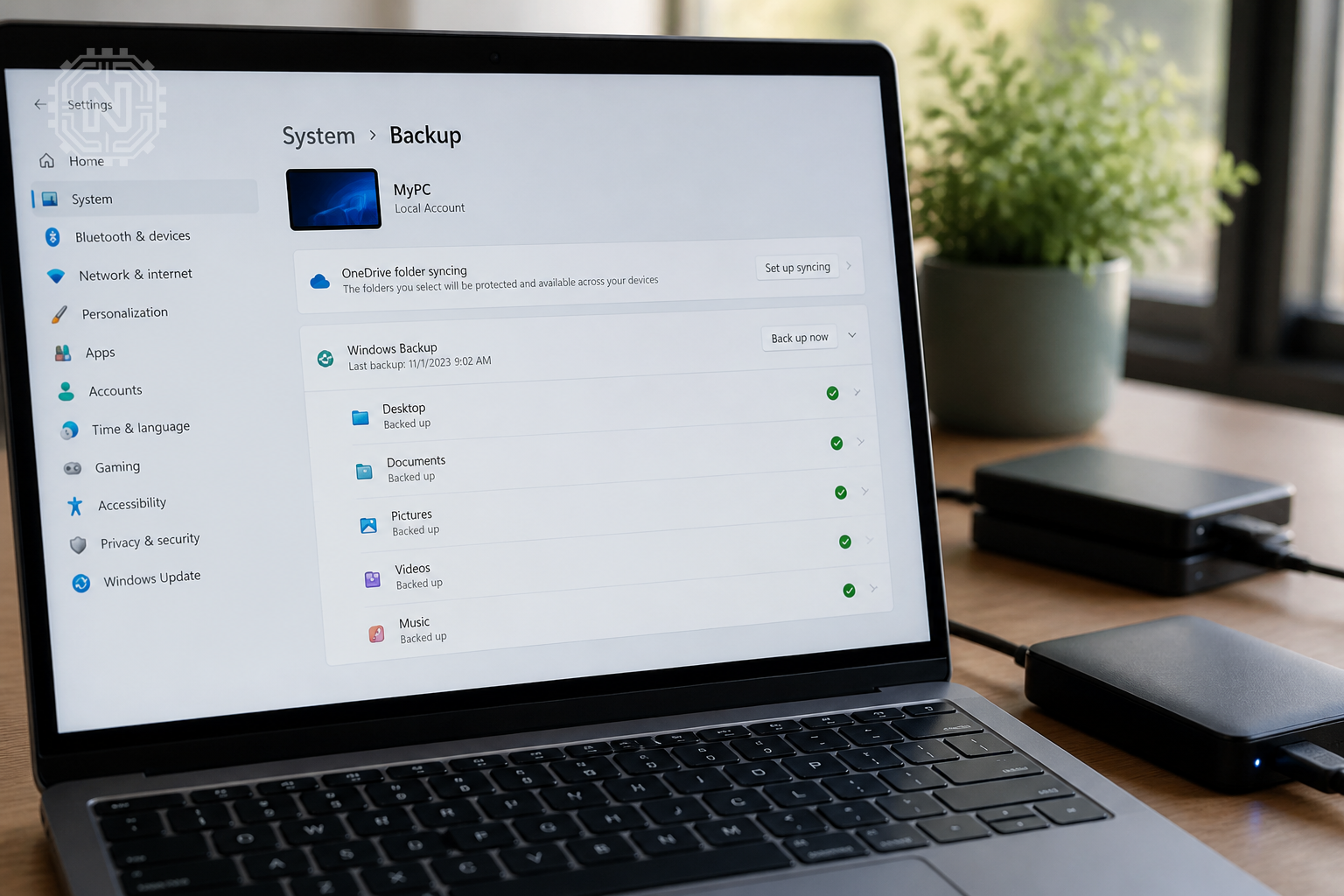
Choosing the Right Backup Software
- Assess your storage needs and budget.
- Look for features like scheduled backups, cloud integration, and encryption.
- Ensure compatibility with Windows 11 and ongoing support.
How to Use Acronis True Image for Backup
Download and install the software from the official site. Follow the wizard to select backup sources, destinations, and schedules. Acronis also offers cloud storage options for off-site backups.
Regularly verify your backups and test recovery procedures to ensure data integrity. For detailed instructions, visit Acronis support.
Pros and Cons of Third-Party Backup Tools
- Pro: Advanced features like incremental backups and encryption.
- Con: Additional cost compared to built-in tools.
- Pro: Greater flexibility and cloud options.
- Con: Slightly steeper learning curve for beginners.
Best Practices for Windows 11 Backup in 2026
To maximize your data security, combine local backups with cloud storage. Keep multiple copies in different locations and regularly update your backups.
Scheduling and Automation
Set automatic backups to run during off-peak hours. Use Windows Task Scheduler or third-party tools to automate the process and reduce manual effort.
Storing Backups Securely
Keep external drives disconnected when not in use to prevent malware infection. Use encryption for sensitive data stored in the cloud or on external drives.
Review your backup strategy periodically, especially after major system updates or hardware changes. This ensures your backup methods stay effective and reliable.
Why Regular Backups Are Crucial in 2026
- Data loss can happen unexpectedly due to hardware failure or cyberattacks.
- Backups minimize downtime and data recovery costs.
- Keeping multiple copies ensures resilience against diverse threats.
Future Outlook: Windows Backup Trends in 2026 and Beyond
Microsoft continues to improve Windows 11's backup capabilities, integrating AI-driven recovery options and seamless cloud syncing. Expect more automation and smarter backup management in upcoming updates.

Emerging trends include increased use of AI for anomaly detection during backups and blockchain-based verification for data integrity. Staying updated with these developments can help users protect their digital lives more effectively.
For ongoing updates, follow the official Windows Blog and trusted tech news sources.
Editorial Sources
Conclusion
Backing up Windows 11 remains a fundamental step in data security, with built-in tools and third-party options available to suit all needs. Regular backups ensure that your files and system settings are safe, enabling quick recovery from unexpected issues. Staying informed about new features and best practices helps keep your data protected in 2026.
Frequently Asked Questions
What is the easiest way to backup Windows 11?
Using Windows' built-in File History and System Image tools offers a straightforward way to back up your data.
Can I backup Windows 11 to the cloud?
Yes, Windows 11 integrates with OneDrive and supports third-party cloud backup solutions for off-site storage.
How often should I backup my Windows 11 system?
Ideally, back up weekly or after any major system update or software installation.
Is a system image backup better than file backup?
A system image creates a complete snapshot of your OS, ideal for full recovery, while file backups focus on personal data.
What external drives are compatible with Windows 11 backups?
Most USB 3.0/3.1 external drives formatted in NTFS are compatible and recommended for reliable backups.
How do I restore my Windows 11 from a backup?
Access recovery options via Settings > Update & Security > Recovery, then select 'Reset this PC' or 'Advanced startup'.
Are third-party backup tools safe to use?
Reputable solutions like Macrium Reflect and Acronis are safe, provided you download from official sources.
What should I do if my backup fails?
Check storage space, verify backup settings, and ensure no conflicting applications interfere with the process. For more on How-To, explore Newtechzy. You can also review our Privacy Policy and Cookie Policy, or learn more About us.
Related Topics
Protect your data today by setting up a reliable backup system. Explore our detailed guides and ensure your Windows 11 files are always safe.
Start Your Journey Today!


