


Quick Summary
- Resetting can fix software glitches and improve performance.
- Different iPhone models require different reset methods.
- Learn how to soft reset, force restart, and factory reset.
- Backing up data before reset is highly recommended.
- Official Apple instructions ensure safe and effective resets.
Resetting an iPhone is a common troubleshooting step for resolving issues like frozen screens, unresponsive apps, or slow performance. In 2026, Apple has streamlined the process across all models, making it easier to fix problems quickly without needing technical support.
Whether you're preparing to sell your device or just want a clean start, knowing how to reset your iPhone properly is essential. This guide walks you through all available methods, from simple soft resets to full factory wipes, tailored for the latest models in 2026.
How to reset iPhone in 2026: Basic methods and when to use them
Most common issues can be addressed with a soft reset, which simply restarts your device without deleting any data. This method is ideal for minor glitches or unresponsive apps.
To perform a soft reset, press and hold the side button and either volume button until the power-off slider appears. Drag the slider to turn off, then press and hold the side button again to turn it back on. This process is quick and preserves all your data.
For more persistent problems, a force restart might be necessary, especially if the device is frozen or unresponsive. The method varies slightly by iPhone model but generally involves pressing specific hardware buttons in sequence.
In newer models like the iPhone 15 series, a force restart can be done by quickly pressing and releasing the volume up button, then the volume down button, and holding the side button until the Apple logo appears. This method forces the device to reboot without affecting personal data.
Apple's official support page provides detailed instructions tailored for each model, ensuring users don’t accidentally trigger a full reset or data wipe. Check out Apple Support for the latest updates and official guides.
Key facts about resetting your iPhone
- Soft reset is safe and preserves all data.
- Force restart resolves unresponsiveness quickly.
- Factory reset erases all data and settings.
- Back up your data before performing a factory reset.
- Latest models support quick hardware button resets.
"Knowing how to reset your iPhone correctly can save time and prevent data loss during troubleshooting."
Tech Expert
How to factory reset iPhone in 2026: Step-by-step guide
Performing a factory reset is the last resort to fix severe issues or prepare your device for resale. It wipes all personal data, settings, and downloaded apps, restoring the device to its original state.
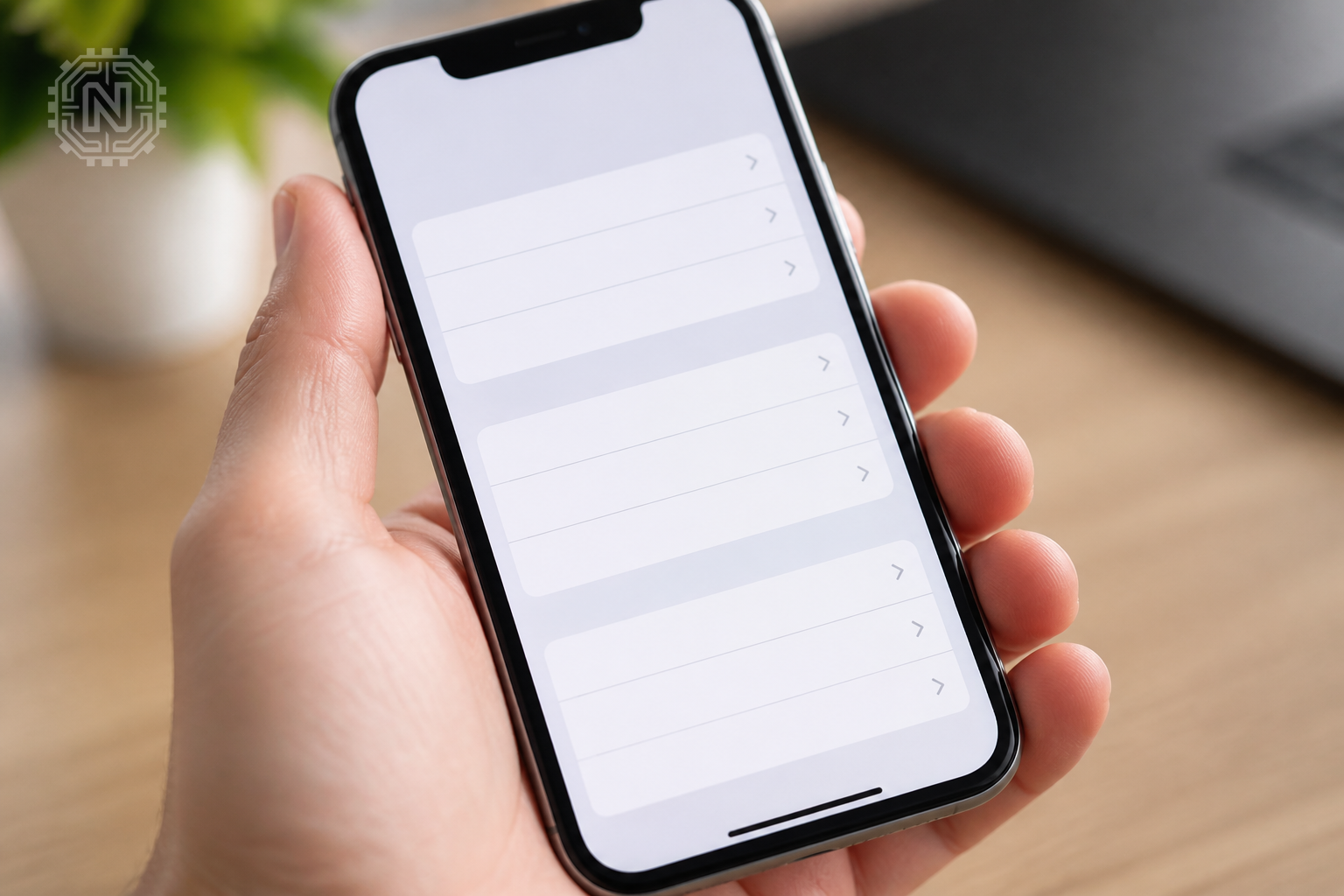
To factory reset your iPhone, go to Settings > General > Transfer or Reset iPhone > Erase All Content and Settings. Enter your Apple ID password or device passcode to confirm. This process may take a few minutes.
For models without a functional screen or if you can't access settings, you can do a full reset via recovery mode using a computer. Connect your iPhone to a Mac or Windows PC with iTunes or Finder, then follow on-screen prompts to restore the device.
Apple recommends backing up your data beforehand, either via iCloud or a local computer backup. Once reset, you can restore from backup or set up as new.
More detailed instructions and troubleshooting tips are available on Apple Support.
Factory Reset Pros and Cons
- Pros: fixes deep software issues, clears personal data, restores performance.
- Cons: erases all data, requires backup, can be time-consuming.
"A factory reset is effective but should be used carefully to avoid data loss."
Apple Support Specialist
Can I reset my iPhone without losing data?
Yes, a soft reset or force restart does not delete your data and is suitable for resolving minor glitches. However, a factory reset will erase everything unless you restore from a backup.
To avoid data loss, always back up your iPhone before performing a factory reset, either through iCloud or a local backup on your computer. This ensures you can recover your personal information afterward.
Learn more about backups and data management at our guide on data backup.
Why backing up before reset matters
- Prevents data loss during factory resets.
- Makes restoring your device easier after troubleshooting.
- Ensures personal data safety during resale or transfer.
"Always back up your iPhone before a reset to safeguard your data and streamline recovery."
Apple Data Security Expert
What are the risks of resetting an iPhone?
Resetting your iPhone is generally safe if done correctly, but improper procedures or interruptions during the process can cause issues like bricking the device or data corruption.
Using official methods and following instructions carefully minimizes risks. Avoid disconnecting the device or interrupting the reset process to prevent potential problems.
For detailed safety tips, visit Apple's official troubleshooting page.
Risks of resetting your iPhone
- Interrupting reset can brick the device.
- Data corruption if not backed up properly.
- Potential software issues if firmware is corrupted.
"Following official procedures minimizes risks and ensures a safe reset."
Tech Safety Analyst
How does a reset affect iPhone security and data privacy?
Resetting your iPhone removes all personal data and settings, which helps protect your privacy if you're selling or giving away the device. It ensures no residual data remains.
However, a factory reset does not remove data stored on iCloud or other cloud services unless explicitly deleted. Always sign out of iCloud and disable Find My iPhone before resetting for added security.
Learn more about iPhone security best practices at Apple Security Support.
Resetting and data privacy
- Removes personal data from the device.
- Protects privacy when selling or disposing of the device.
- Requires signing out of iCloud for complete removal.
"A proper reset enhances data privacy and reduces the risk of data leaks."
Cybersecurity Expert
Future outlook: Will resetting processes change further in 2026?
Apple continues to refine reset procedures for newer iPhone models, aiming for quicker, more secure methods. Expect improvements like automated backup prompts and integrated reset options in upcoming updates.
As iPhones become more integrated with cloud services and AI features, resetting may also include smarter options for selective data removal or automatic backups, reducing user effort and error.
Stay updated with official announcements at Apple's official site for the latest on device management features.
Future of iPhone resets in 2026
- Expect faster, more secure reset options.
- Integration with iCloud and AI for smarter resets.
- Potential for automated backup prompts before reset.
Editorial Sources
Conclusion
Mastering how to reset your iPhone in 2026 ensures you can troubleshoot effectively, protect your data, and prepare your device for resale or service. Using official methods and backing up beforehand minimizes risks and guarantees a smooth process, keeping your device running smoothly.
Frequently Asked Questions
Can I reset my iPhone without deleting my data?
Yes, a soft reset or force restart does not delete your data and is suitable for resolving minor glitches.
How do I perform a factory reset on my iPhone?
Go to Settings > General > Transfer or Reset iPhone > Erase All Content and Settings, then follow prompts.
What should I do before resetting my iPhone?
Back up your data via iCloud or your computer to avoid losing important information.
Is resetting an iPhone safe?
When done correctly using official methods, resetting is safe and helps resolve software issues.
How long does a reset take on an iPhone?
Soft resets are instant, while factory resets can take several minutes depending on data size.
Will resetting my iPhone erase iCloud data?
No, resetting deletes local data but not content stored in iCloud unless you sign out first.
Can I reset my iPhone if the screen is broken?
Yes, via recovery mode using a computer with iTunes or Finder, even if the screen is unresponsive.
What are the risks of resetting my iPhone?
Risks include potential data loss if not backed up and possible software issues if interrupted. For more on How-To, explore Newtechzy. You can also review our Privacy Policy and Cookie Policy, or learn more About us.
Related Topics
Explore more iPhone tips and troubleshooting guides to keep your device in top shape. Contact our support team for personalized assistance.
Start Your Journey Today!


